




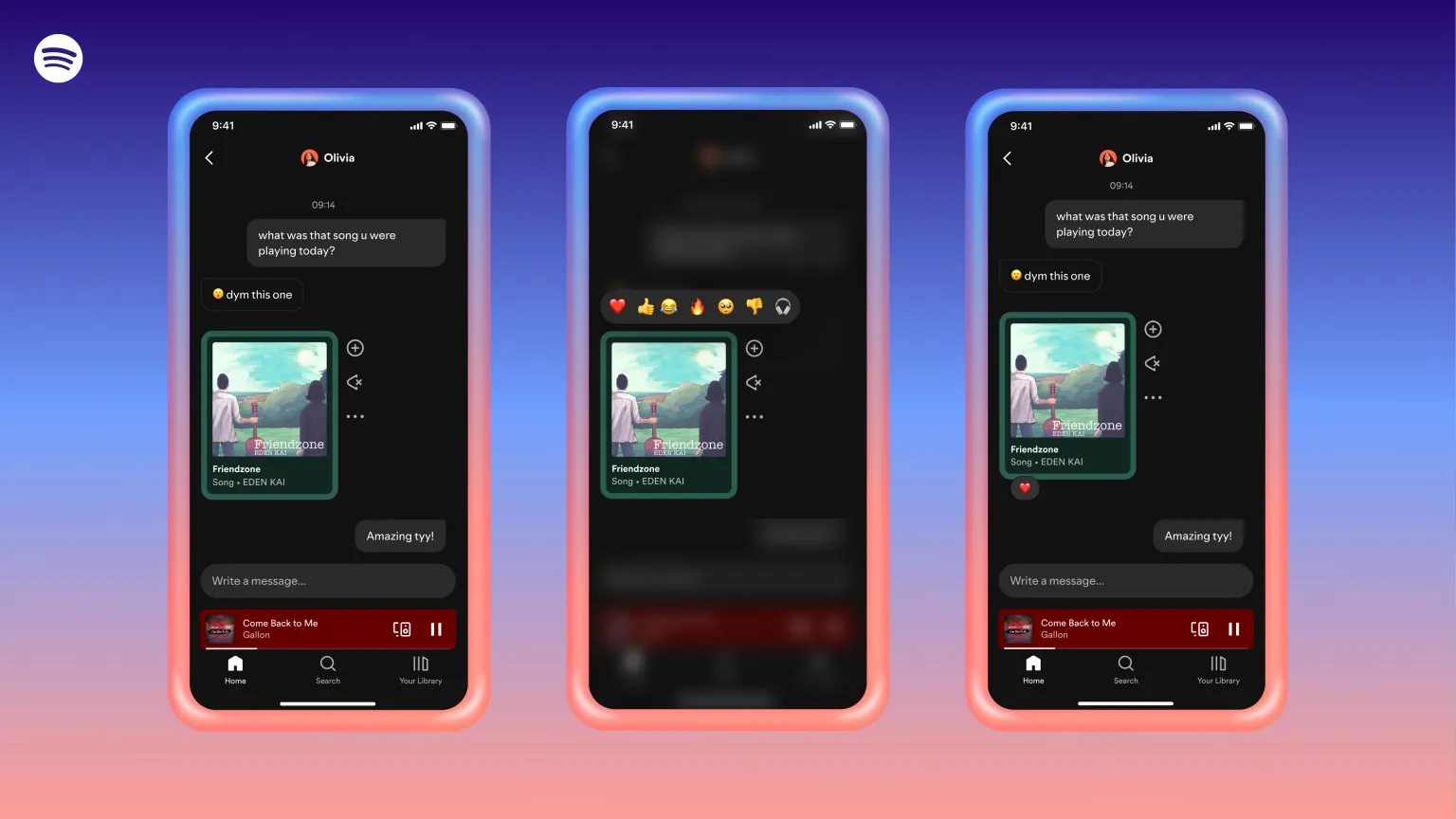
Spotify has introduced in-app messaging so you can chat with friends without leaving the app. Here’s how to use it:
1. Check if you have access
- The feature is rolling out in select markets (currently Latin & South America, with more regions coming soon).
- Available for users 16+ on mobile only (iOS & Android).
- Make sure your app is updated to the latest version.
2. Start a conversation
You can only message people you’re already connected with on Spotify. That includes:
- Friends you’ve shared a song, playlist, or podcast with before.
- People you’ve made a collaborative playlist, Jam, or Blend with.
- Members on your Family or Duo plan.
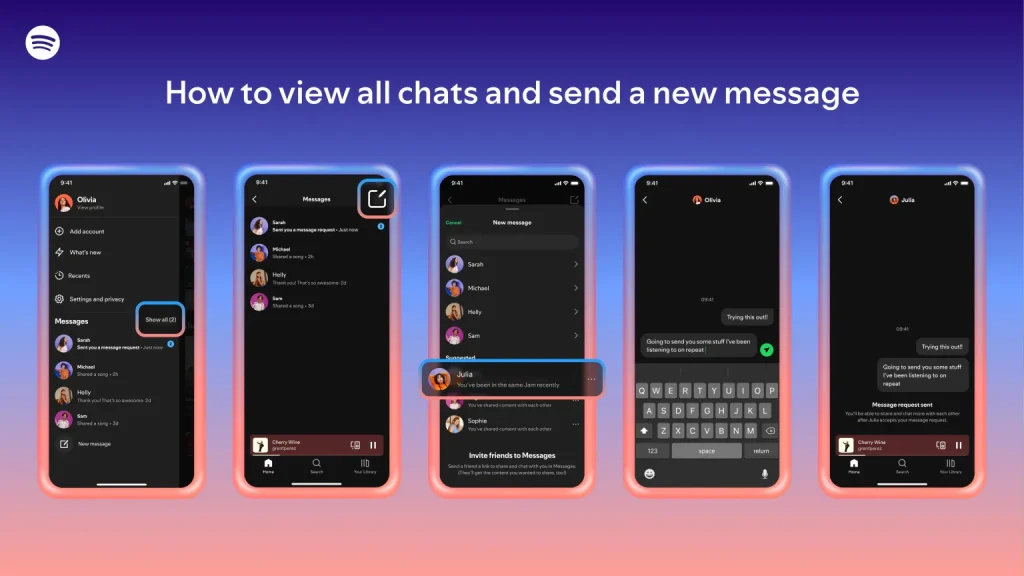
Steps
- Go to the profile of the person you want to chat with.
- Tap Message (if available).
- Send a request — the other person must approve it before the chat begins.
1. Accepting chat requests
- If someone sends you a Spotify link on WhatsApp, Instagram, TikTok, or other apps, you’ll see an option to approve their request to chat.
- You can also invite someone by sending them a chat link from your contacts.
2. Find your messages
- Tap your profile picture in the app.
- Go to the Messages section in the left-hand hover bar.
- Open any conversation to see your chat history.
3. Use reactions
- Long-press or tap on a message to react with an emoji.
- This works just like reactions on WhatsApp, Instagram, or Messenger.
Privacy & controls
- Messages are encrypted in transit and at rest, but not end-to-end encrypted.
- Spotify may review flagged conversations if reported.
- To turn off messages:
- Go to Settings.
- Tap Privacy and Social.
- Toggle off Messages.